Getting Started#
After downloading and installing OKColors make sure you enter it as a dependency into your .uproject file.
"Plugins": [
    ...
    {
        "Name": "OKColors",
        "Enabled": true
    },
    ...
]
* You can find all the examples used for figures in this section in the Samples folder of the plugin.
Using Blueprint Nodes#
When you have installed the plugin, you have all blueprint nodes and types automatically available in blueprints, widgets etc.
You can find them in the blueprint editor in the OKColors category.

To use an LCH Color you can add it as a variable like normal

The LCHColor type uses the native Unreal color picker which allows selection of a color in linear color space and converts it to the LCHType upon selection.

From here you can use it like any other variable with a value and may also manually set the L,C,H and A values.
Using Material Expressions#
In order to use LCH Colors in materials you have two options when transmitting them to a material.
Send a Linear Color and Convert it in the material#
This option changes nothing about interacting with the material on a Blueprint or C++ side and moves all conversions into the material. If you are already using a LCHColor in your blueprint or widget do NOT use this method but reinterpret the color instead.

Send the FLCHColor and use it directly#
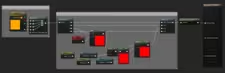
This requires you to convert the FLCHColor into a FLinearColor without changing the unterlying content, you can do this by using the InterpretAsLinearColor Function.

This will mean that the material can use the FLCHColor directly and does not need to Convert the color itself.
Using FLCHColor in C++#
Adding Dependecies#
To make use of OKColors types in your C++ code make sure you add the modules as dependencies to your game and editor modules build.cs files.
GameModule:
//...
PublicDependencyModuleNames.AddRange(
			new string[] {
			"Core",
			"CoreUObject",
			"Engine",
            //...
			"OKColors"
		});
//...
EditorModule:
//...
PublicDependencyModuleNames.AddRange(
			new string[] {
			"Core",
			"CoreUObject",
			"Engine",
            //...
			"OKColorsEditor"
		});
//...
To use the FLCHColor in your c++ modules simply include LCHColor.h in your .h or .cpp files.
The OKColors Module exposes further functionality in the form of some namespaces like OKColors::Operations which can be found in the OKLABConversion.h header file.